LockDown Browser Warning on Your Canvas Course Home Page
December 23, 2025
Dear Instructors,
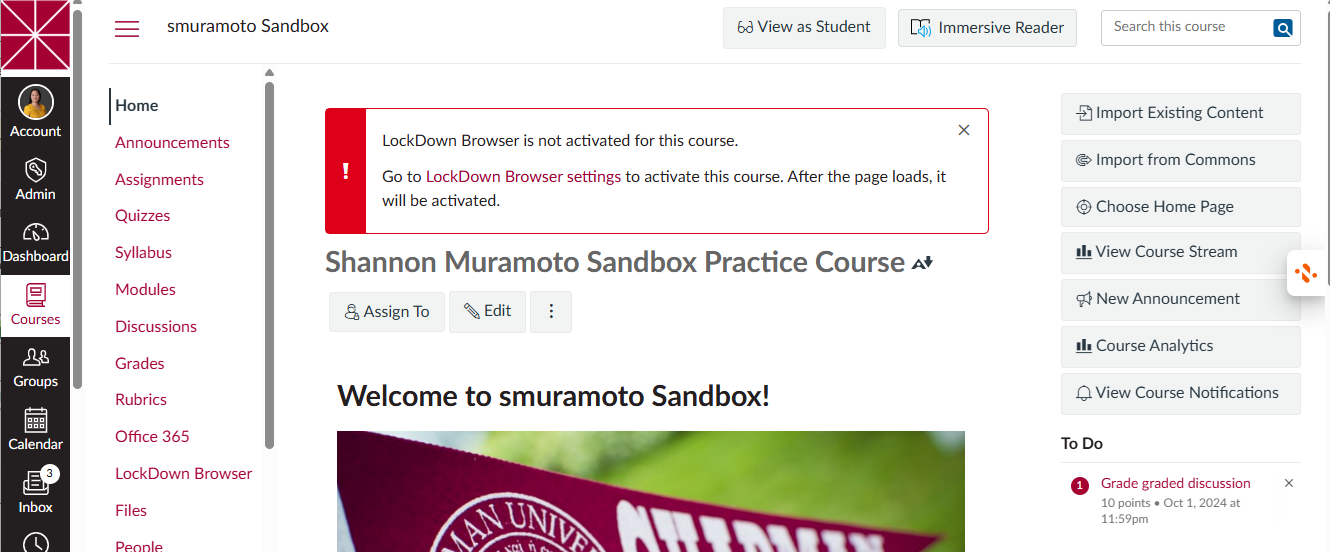
You may notice a message on your Canvas course Home page that reads:
“LockDown Browser is not activated for this course. Go to LockDown Browser settings to activate this course. After the page loads, it will be activated.”
Why am I seeing this message?
This warning appears only if your course includes at least one quiz that requires LockDown Browser. It is a reminder for instructors to open the LockDown Browser settings at least once.
Important things to know
-
✅ Students do not see this warning
-
✅ The message is not an error
-
✅ No changes to your quiz settings are required
How to clear the warning
The warning will automatically disappear after you view the LockDown Browser settings. You can do this by either:
-
Clicking the link directly in the warning message, or
-
Navigating to LockDown Browser from the course’s left-hand navigation menu
Once the LockDown Browser settings page loads, the course is considered “activated,” and the warning will be resolved.
Need help?
If you have questions about LockDown Browser or want help confirming your quiz settings, please contact the Canvas team at canvas@chapman.edu. We’re happy to help!