Be sure to turn on your Canvas notifications for the CETL Den so you don’t miss information about our upcoming events!
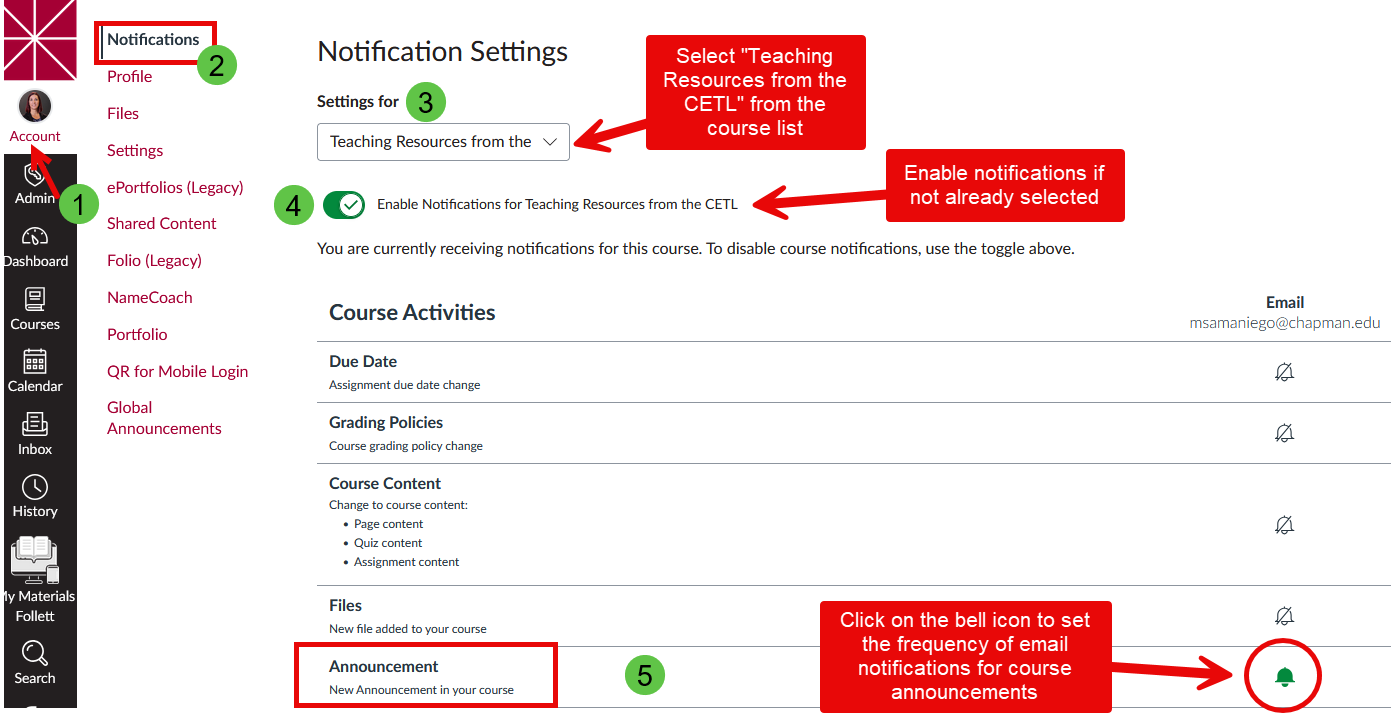
Step 1: In Canvas, click on Account at the top of the global menu bar on the left side of the window.
Step 2: Click on Notifications from the menu that appears.
Step 3: Under “Settings for”, click on the dropdown menu and scroll to find “Teaching Resources from the CETL”. Click that course name.
Step 4: Click to “Enable notifications” from the course (if this is not already selected); you will see a green check mark to indicate that notifications are enabled for this course.
Step 5: Scroll down to Announcement. To the right, there will be an icon under the Email column header. Click on that to select the frequency of announcement notifications (which will be sent to your Chapman email). You can select “notify immediately”, “daily summary” or “weekly summary”.