The Online Classroom Inventory – Gain Insight into your Teaching Spaces!
What is an Online Classroom Inventory?
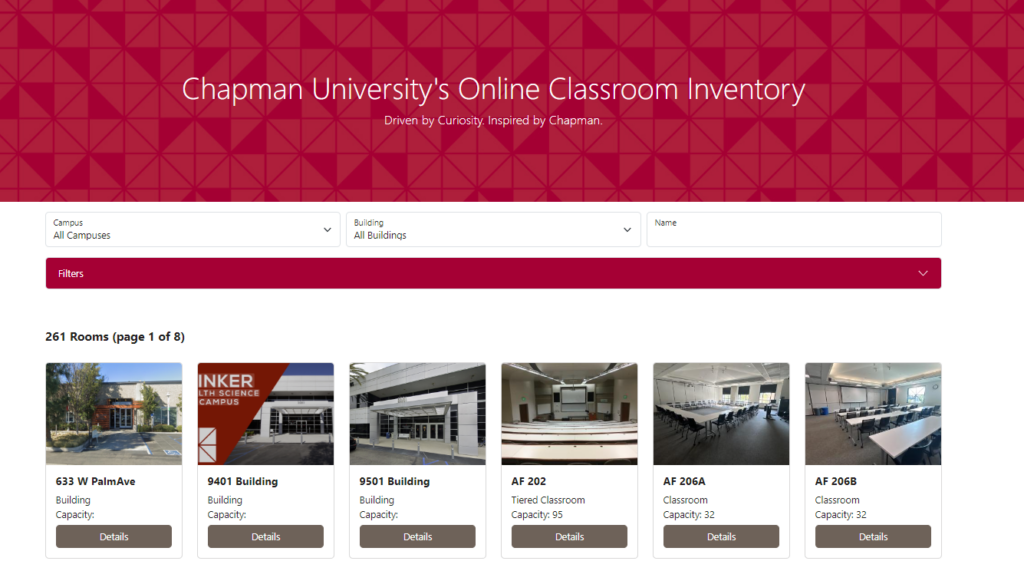
The Online Classroom Inventory (OCI) gives faculty a digital look into the teaching spaces on campus. Here, you can see pictures of the classroom, furniture descriptions, available technology, accessibility options, and training videos/documentation to accompany the capabilities of each individual room.
How do I access the new OCI?
To access the new Online Classroom Inventory (OCI), head to web.chapman.edu/classrooms. There you will be asked to sign in using Chapman’s Single Sign-on Account. This will take you to the OCI home page.
How do I navigate and use the new OCI?
Once you have signed in, the OCI Home page displays the 250+ Classrooms, Labs, and teaching spaces available at either the Orange or Rinker campuses. Here, you can search by Campus, Building, or room name/number. You can search for rooms with specific criteria via a “Filters” drop down menu. These filters indicate certain technological and accessibility options. For example, one could search Orange Campus for a room with Tiered Seating, a Wireless Mic, and an Accessible Instructor desk which will return with Beckman 104 & Beckman 106. You may also Favorite classrooms by selecting the heart in the corner of the Room image, and sort by favorited rooms.
By selecting “Details” on a chosen room, you will open the rooms information page, displaying relevant information about what sources are available (PC, Laptop, etc.), what kind of Zoom capabilities are present, what type of accessibility is available, what kind of classroom is it, what is the capacity of the space, furniture that is present, and instructional videos for the technology that need a few extra steps; like the Apple TV source, or Zoom Connect/Prime functionality. If a certain function has additional details or training attached, you will see a little blue arrow in its information box to open a pop-up window with extra information.
There is a “Need Help?” section on every room page with directions on how to get immediate assistance through the Media Services team, or by scheduling a technician via the “Book a Technician” button. You can book a Technician at the Orange Campus or the Rinker Campus to assist with classroom technology.
I have a suggestion for the new OCI!
Fantastic! If you have any issues with the new OCI, or have any suggestions on how to improve the site, please either put in a ticket with servicedesk@chapman.edu, or email me at awinton@chapman.edu directly.