Dear Chapman Instructors,
Below please find answers to the most frequently asked questions about Canvas Quizzes during the midterm and final exam seasons.
Note: The below instructions are for Canvas Classic Quizzes. If you are using or intend to use Canvas New Quizzes, please see the Canvas Instructor Guide for New Quizzes.
How do I accommodate students who need extra time?
If you have students who need extended time for quizzes/exams (e.g. “time + 1/2” or “double time”), you can use the Moderate Quiz feature in Canvas to give these students the extra minutes they need for timed quizzes.
Canvas Guide: Once I publish a timed quiz, how can I give my students extra time?
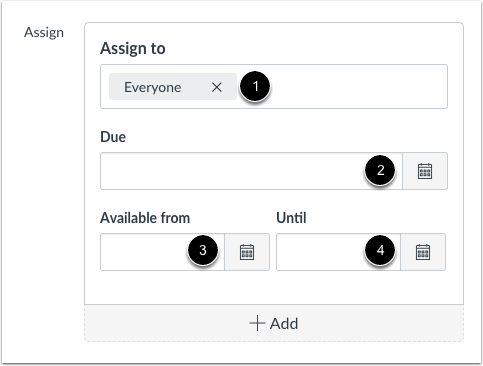
Important: If you have entered an Available Until date and time (4 in the image below), any student who is still taking the quiz will be kicked out at that time, even if you have moderated the quiz and given the student extra minutes.
How do I accommodate students who need to take a Canvas quiz at a different time than the rest of the class?
There may be a circumstance where a student needs to take a Canvas quiz at a different time than the rest of the class. The following video shows how to accommodate a student in this way in Canvas.
Important: Be sure to use the + Add button to add the student(s) rather than removing Everyone and replacing Everyone with the student(s). If you remove Everyone, then Canvas will hide the submissions and grades of all of the other students who have taken the quiz in SpeedGrader and the Gradebook.
What if a student needs an extra attempt?
If something happened during a Canvas quiz, such as a student accidentally getting kicked out due to a quiz setting or their computer dying, and you would like to give the student another chance to take the quiz, the following Canvas guide contains step-by-step instructions.
Canvas Guide: Once I publish a quiz, how can I give my students extra attempts?
How do I copy a quiz from one Canvas course to another?
There are a few different ways to copy a quiz from one Canvas course to another. The simplest way is to find the quiz that you would like to copy, click on the three dots to the right of the quiz, then select Copy to….

Canvas Guide: How do I copy a quiz to another course?
Important: There have been a few cases where a Canvas quiz that students had already taken was overwritten when another quiz was copied into the course. If you are someone who likes to make copies of quizzes to create different versions and frequently copies quizzes between Canvas courses, then you may want to use a safer method to avoid this issue. According to Canvas Support, the safest way to copy a quiz from one course to another is to export the quiz as a .zip file, then import the .zip file into the other course as follows:
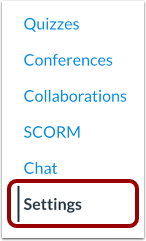
In Course Navigation, click the Settings link.
Click the Import Course Content button.

In the drop-down menu, select the QTI .zip file option. Click the Choose File button.
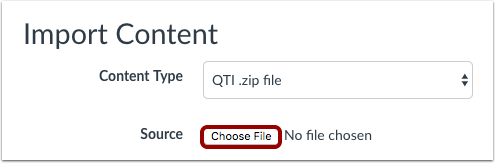
Find and click the ZIP file you want to import [1]. Click the Open button [2].

DO NOT check the box next to “Overwrite assessment content with matching IDs,” then click on the Import button.

Need Support?
- Email us at canvas@chapman.edu.
- Visit us in the Virtual Tech Hub for drop-in support M-F from 2:30pm – 4:30pm.
- Schedule a 1:1 consultation with an Educational Technology Services team member.